

Connecting to Looker Studio
IntegrationsHow to connect Looker Studio to your AccuRanker and/or AccuLLM account
How do I connect Looker Studio to AccuRanker and/or AccuLLM?
Step 1)
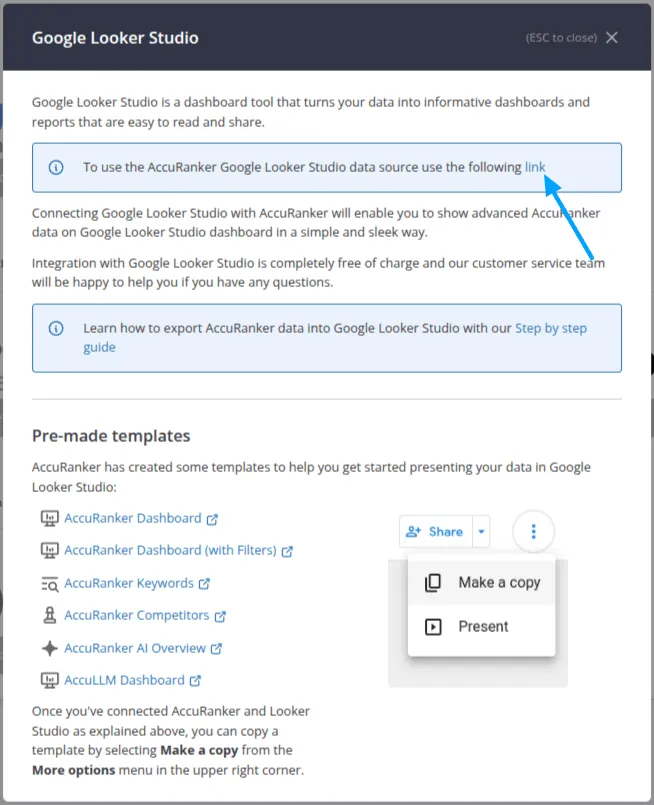
Go to “Integrations” in the left-hand menu, select the Looker Studio integration, and click on the data source link.
Step 2)
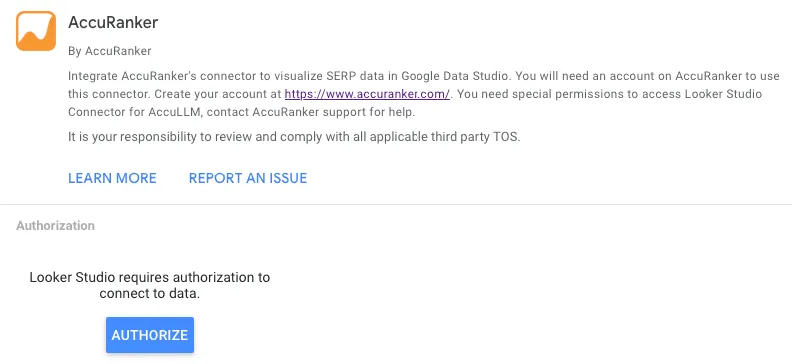
If this is your first time using Looker Studio, you will be prompted to do the basic setup.
You will have to authorize the use of the connector and data by logging in and confirming the action.
Step 3)
Next, you need to grant Looker Studio the ability to pull data from AccuRanker.
Simply log in to your AccuRanker account to authorize this.
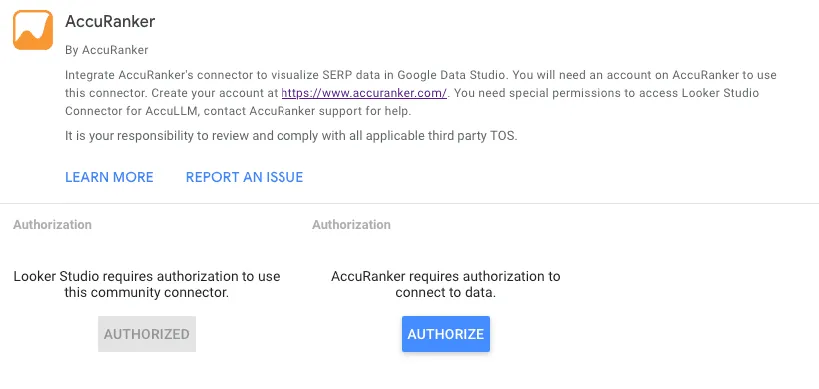
After this, you should receive the message: “Success! You can close this tab”.
Step 4)
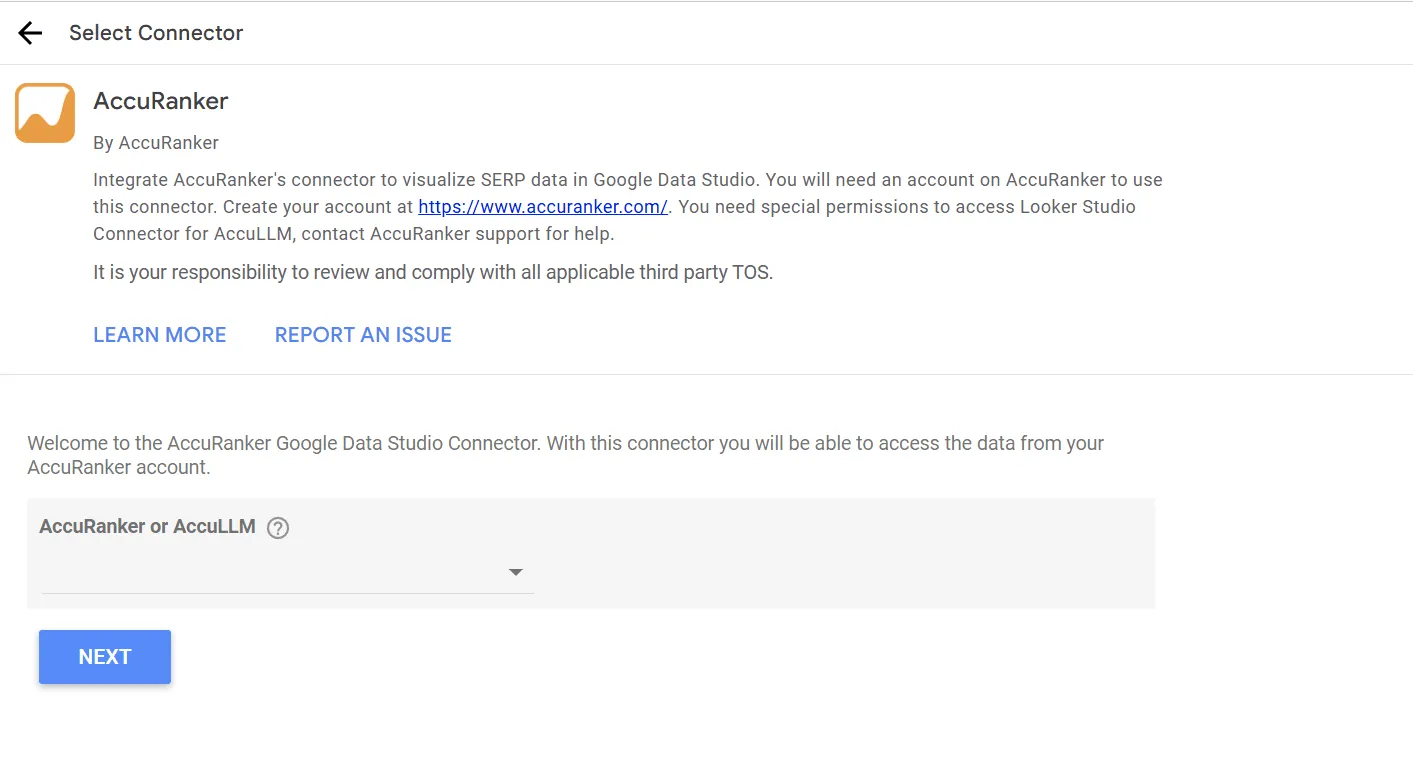
Choose between the AccuRanker and the AccuLLM connector and click "Next".
Step 5)
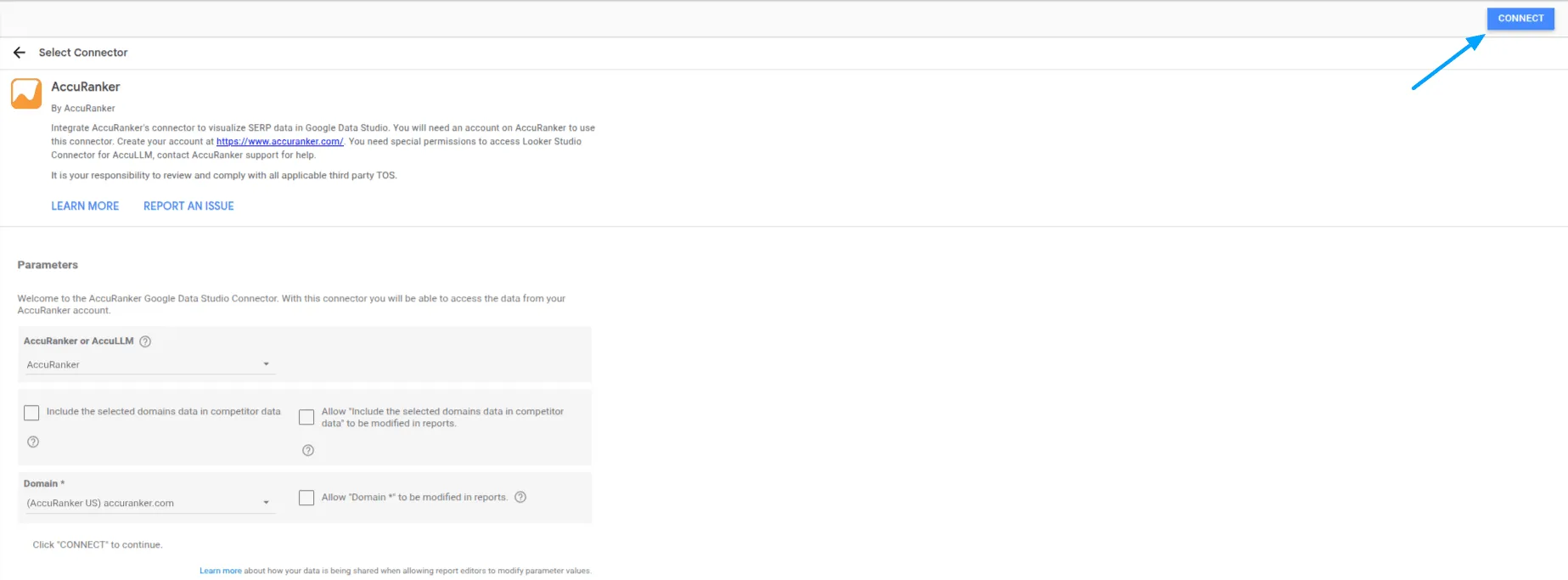
The organisation list consists of your own account and any sub-accounts you may have.
Make sure that the domain you choose relates to the correct organization; otherwise, you will receive an error message.
Once you select which account and domain you want to export from, simply click “Connect”.
Step 6)
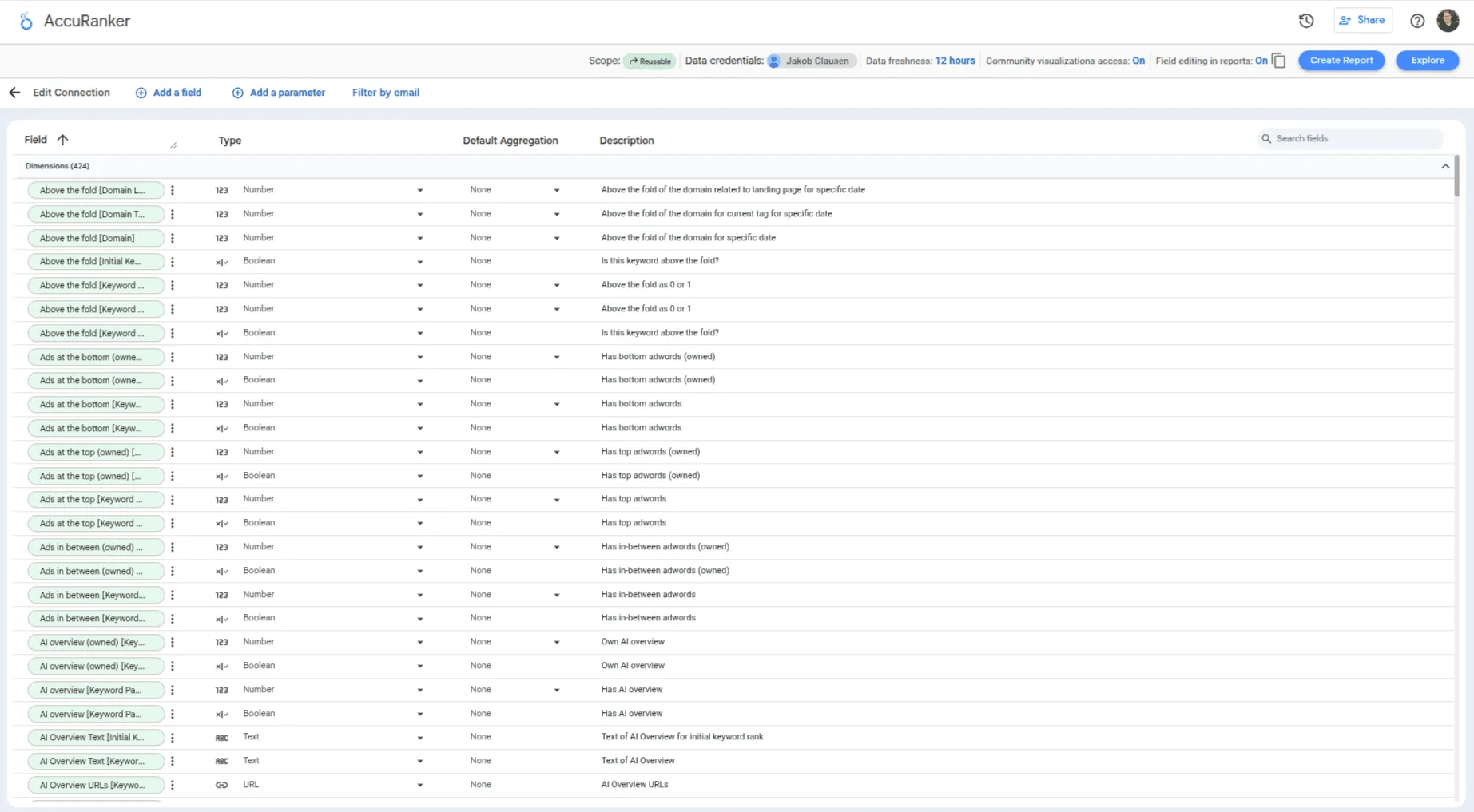
All the fields are added by default, so you can safely click “Create Report” in the top right corner. If you have not connected Looker Studio to Google Drive, you will be prompted to do so.
Related help guides
Revoking Access to Looker Studio
Connecting to Google Search Console
Connecting to BigQuery
Still need help?
Customer support
Our live support team is ready to assist you with any issues.