

Tag Cloud in AccuLLM
Getting StartedAnalyze and organize tags in AccuLLM
Welcome to the AccuLLM Tag Cloud help guide, which explains how Tag Cloud works in the AccuLLM interface.
What are folders?
Folders are a way to organize your tags into product categories, content types, or other categories. Folders and tags work much like folders and files in a file system.
Each folder aggregates data from all tags inside it, including subfolders. If the same item appears under multiple tags in the same folder, it is only counted once in aggregated folder statistics. This makes folders ideal for higher-level analysis of your AccuLLM data.
How do I create a folder?
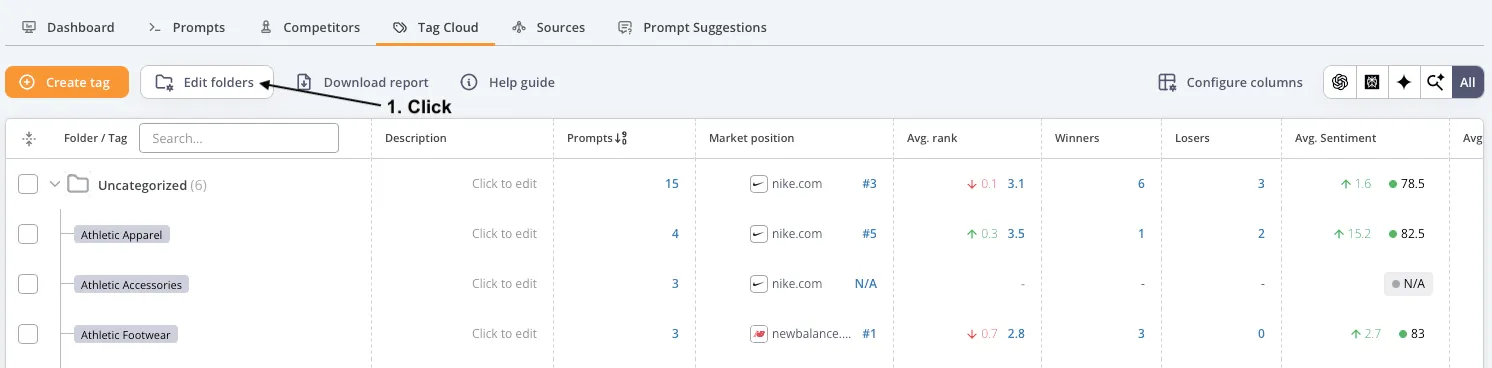
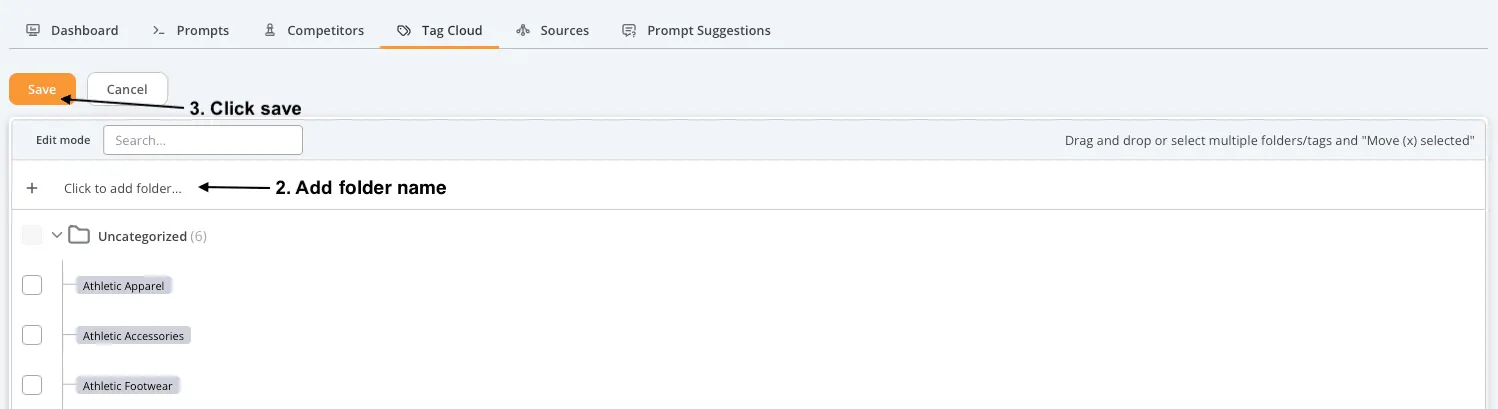
- Click 'Edit folders' in the top left corner of the AccuLLM Tag Cloud tab.
- At the top of the table, click 'Click to add folder…'.
- Name the folder and save it by clicking 'Add'.
How do I rename folders?
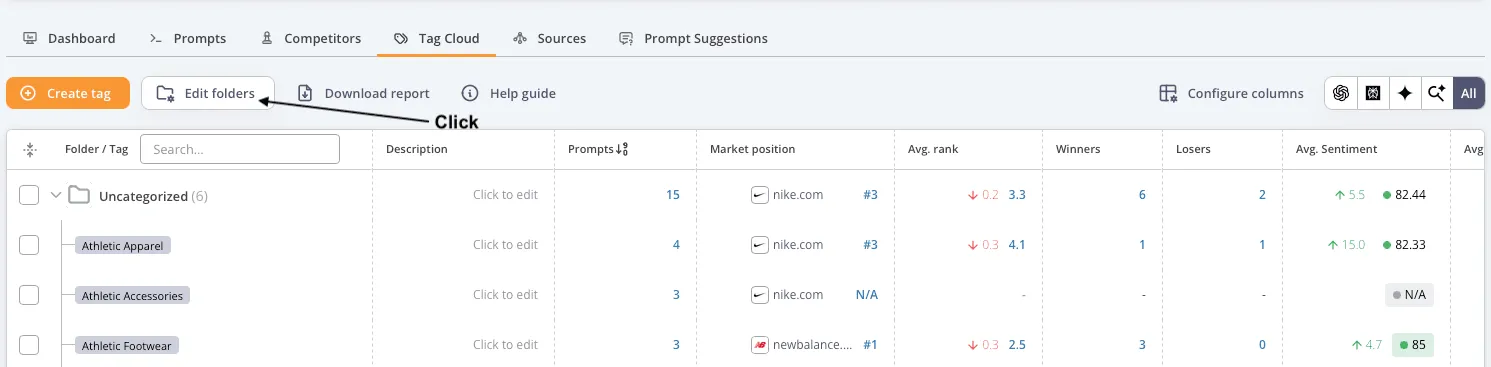
- Click 'Edit folders' in the top left corner.
- Hover over the folder and click 'Edit'.
- Rename the folder and click 'Save'.
How do I move multiple tags into a folder at once?
- Click 'Edit folders'.
- Select the checkboxes next to the tags you want to move.
- Then choose either to; 1) drag and drop them into a folder, 2) click 'Move selected' and choose the destination folder, or 3) click the folder icon next to your desired folder to move the selected tags.
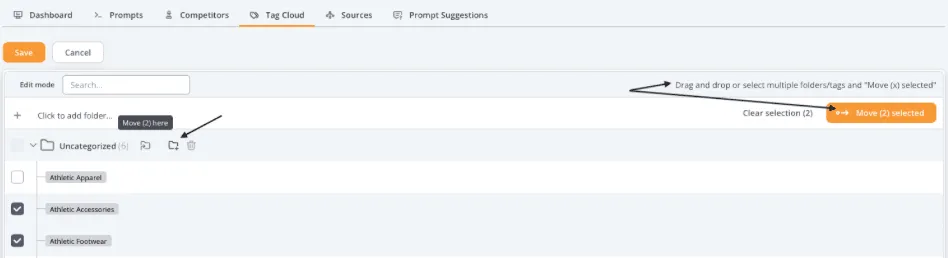
You will notice an 'Uncategorized' folder. This contains all tags you have not assigned to a folder yet. Once you have organized all tags into folders, the Uncategorized folder disappears automatically. You cannot rename the folder, but you can create a new folder and move the tags there if you prefer a different name.
How do I create a tag?
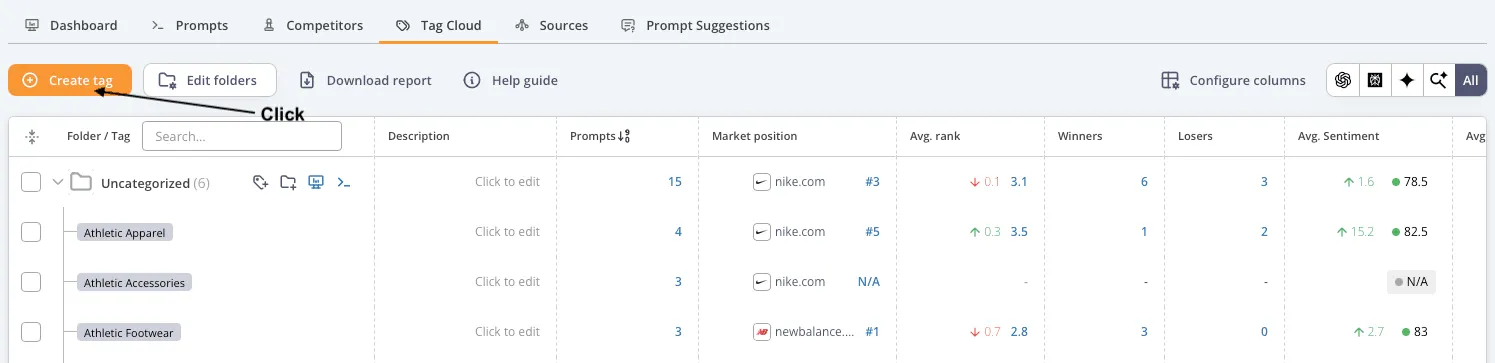
- Click 'Create tag' in the top left corner of the AccuLLM Tag Cloud tab.
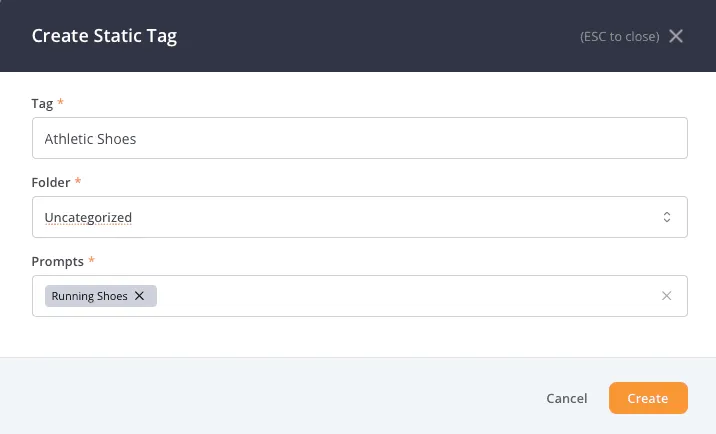
- Enter your tag, choose the folder, and add the prompts that should have this tag.
- Save your tag by clicking 'Create'.
How do I rename tags?
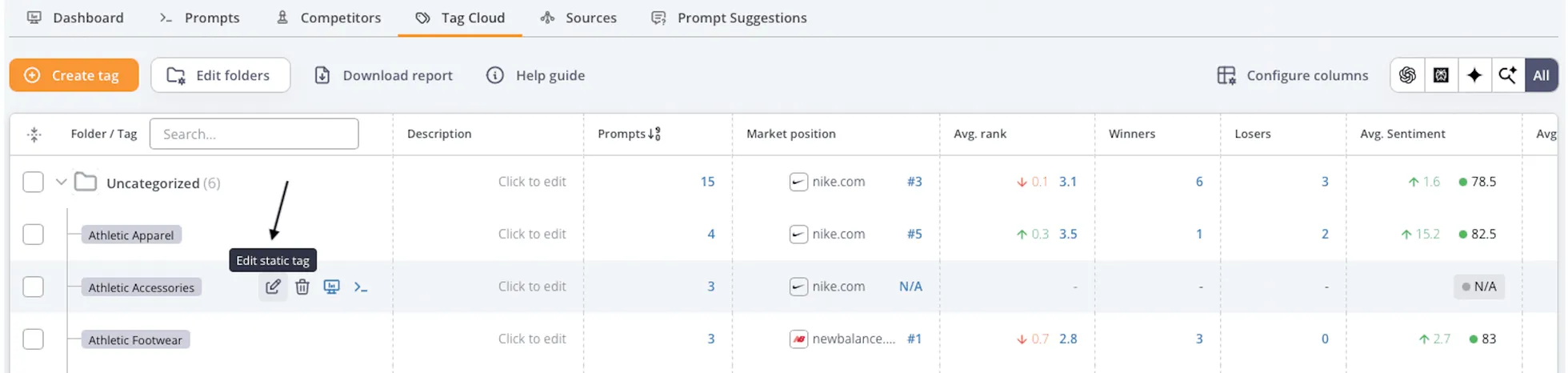
- Hover over the tag and click 'Edit'.
- Rename the tag and click 'Save'.
Static tags
If you already use the Tag Cloud for keywords in AccuRanker, you may know that we work with static and dynamic tags. However, we currently only have static tags in AccuLLM.
Static tags are tags that you manually apply to prompts. They only disappear when you delete them. Static tags are often applied either when adding new prompts or by creating a filter on the prompt list and applying the tag to all prompts within the filter.
How do I see historical data for a tag/folder?
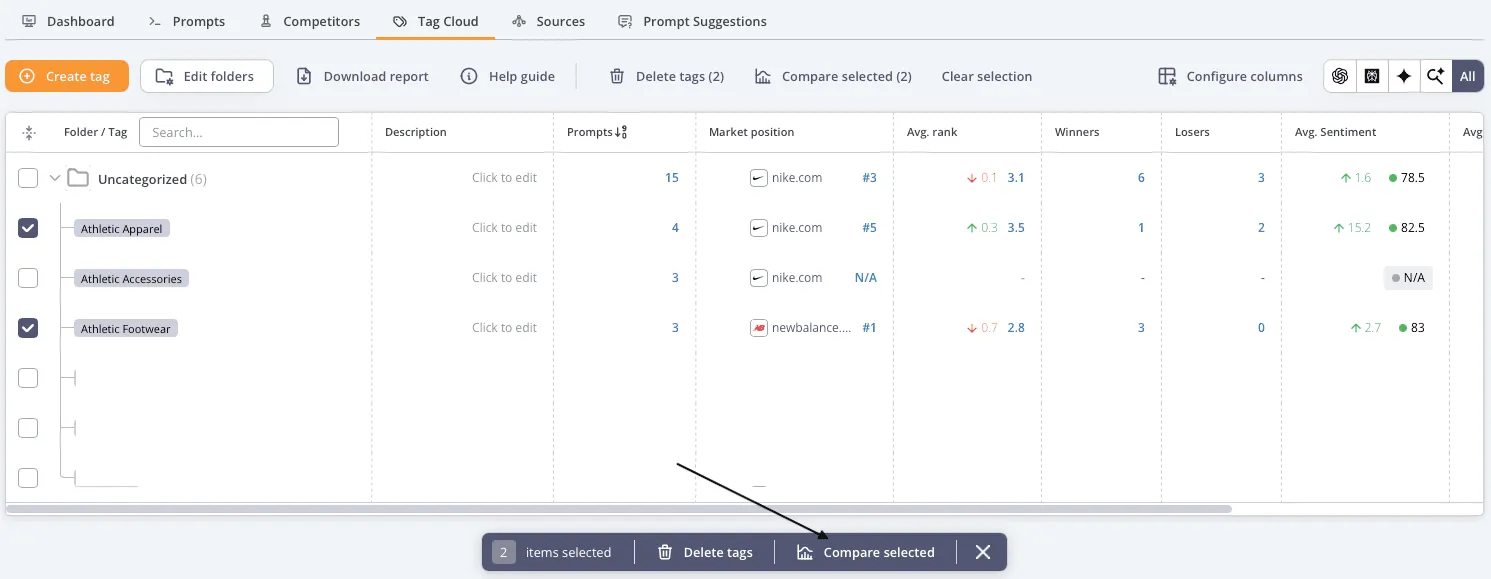
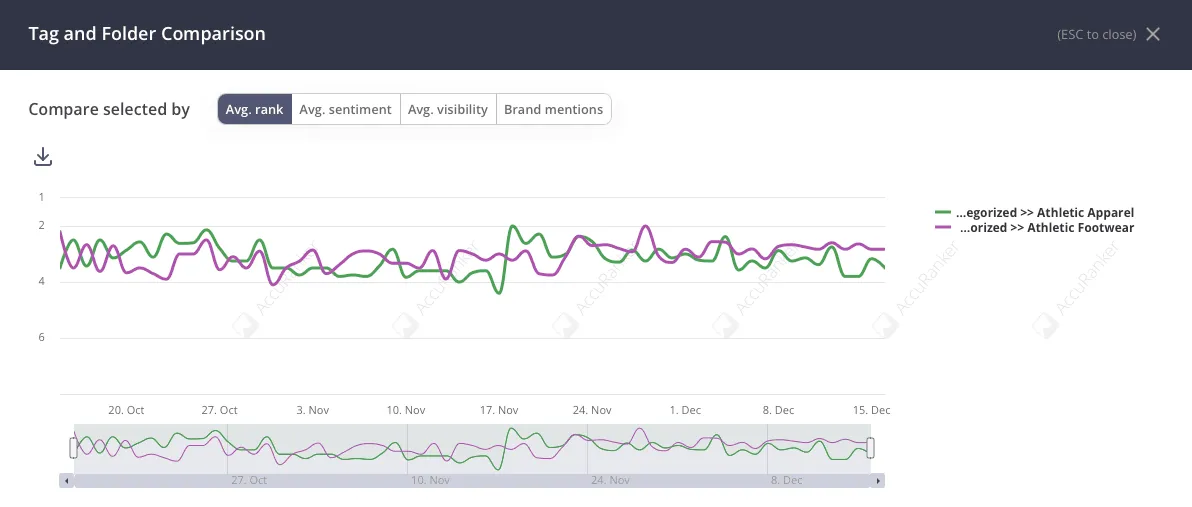
You can access historical performance by selecting a tag/folders you want to compare and clicking 'Compare selected' in the floatbar that appears at the bottom of the table. You will see a side-by-side view of key performance and content quality metrics for the seleted tag and folder.
Explanation of the columns in the Tag Cloud table
Each column in the Tag Cloud table represents aggregated data for the matching prompts.
Tags: The data is aggregated for all prompts that have this tag.
Folder: The data is aggregated for all prompts that have any of the tags within the folder or subfolder. Each prompt is only counted once, even if it has multiple tags all belonging to the same folder.
| Column | Data for all prompts in the corresponding tag/folder |
|---|---|
| Folder | Contains the folder or tag name. Hover to see the options for each folder/tag, e.g., edit, delete, or click the icon to go to the prompt list and see the prompt responses. |
| Description | A custom description you can enter for a tag/folder. |
| Prompt | The number of prompts belonging to this tag/folder. |
| Market Position | Shows the best performing brand along with your rank among competitors for this tag/folder. Brands are ranked by their average visibility. |
| Average Rank | The average rank of prompts belonging to this tag/folder. |
| Winners | The number of prompts in this tag/folder that improved in rank since the compare date. |
| Losers | The number of prompts in this tag/folder that worsened in rank since the compare date. |
| Average Sentiment | The average sentiment across prompts belonging to this tag/folder. |
| Average Visibility | The average visibility across prompts belonging to this tag/folder. |
| Brand Mentions | Shows the brands mention across prompts belonging for this tag/folder. |
| Top Proximity Score | Measures how early a brand appears in prompt responses, earlier mentions score higher. |
| Share of Domain Citations | The percentage of citations owned by your domain across all filtered prompts. |
| Share of Brand Mentions | The percentage of brand mentions attributed to your brand in the selected prompt set. |
| Web Search Rate | The percentage of prompt responses that include web search results. |
Related help guides
Tag Cloud in AccuRanker
Static Tags and Tagging Keywords
Dynamic Tagging
Still need help?
Customer support
Our live support team is ready to assist you with any issues.