

How to Research Keywords on Keyword Discovery
KeywordsLearn how to research your own and competitor domains and identify relevant ranking keywords to track
Keyword Discovery lets you research the keywords associated with your own domain, competitor domains, and individual landing pages.
You can search for a domain or URL, explore its discovered keywords and competitors, refine the results using filters, and import relevant keywords for ongoing tracking.
If you are new to the feature, start with our Keyword Discovery guide for an overview of how Keyword Discovery works.
How to Access Keyword Discovery
Select Discovery from the sidebar on the left-hand side. Keyword Discovery is available to all AccuRanker users.

How to Research a Domain or Landing Page
When you open Keyword Discovery, you can enter the domain or landing page you want to research.
You can search for a homepage, such as example.com, or a specific landing page, such as example.com/sub-page/yet-another-subpage/. You can also select one of your registered domains or a domain from your previous searches using the dropdown.
To start your research:
- Enter or select the domain or landing page you want to analyze.
- Press Enter to confirm your selection.
- Select a location or keep the suggested country.
- Click Search.
Keyword Discovery will then display the available data for the selected domain or page.
Domain Search
The domain search and country selection fields appear near the top of the page, below the Keyword Discovery tab. You can use these fields to research another domain or return to one of your previous searches.
If you do not remember the complete URL, start typing it in the search field. AccuRanker will suggest matching domains from your previous searches.
Key Performance Metrics
The KPI bar provides a quick overview of the main metrics for the domain you are researching.
You can use these metrics to assess the domain's overall performance, including how many keywords were discovered, its traffic, and how well it generally ranks for those keywords.
This gives you an initial overview before you investigate individual keywords or competitors in more detail.

Quick Actions
The Quick Actions panel appears below the KPI bar and gives you quick access to frequently used filters.
You can combine Quick Actions with filters from the main filter bar. This allows you to narrow your focus to the keywords most relevant to your research.
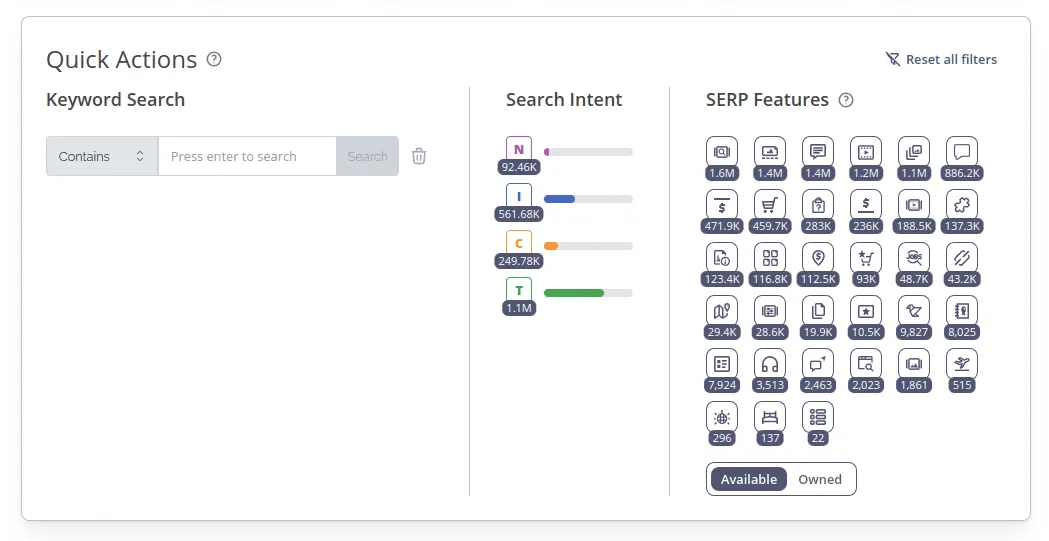
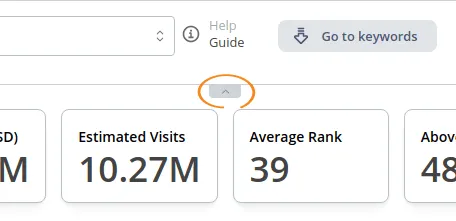
On smaller screens, you can collapse the KPI bar and Quick Actions panel to create more space for the keyword table. Click the arrow above the KPI to hide the panel.
For more information about the Quick Actions, see our Keyword Discovery guide.
How to Research Competitors
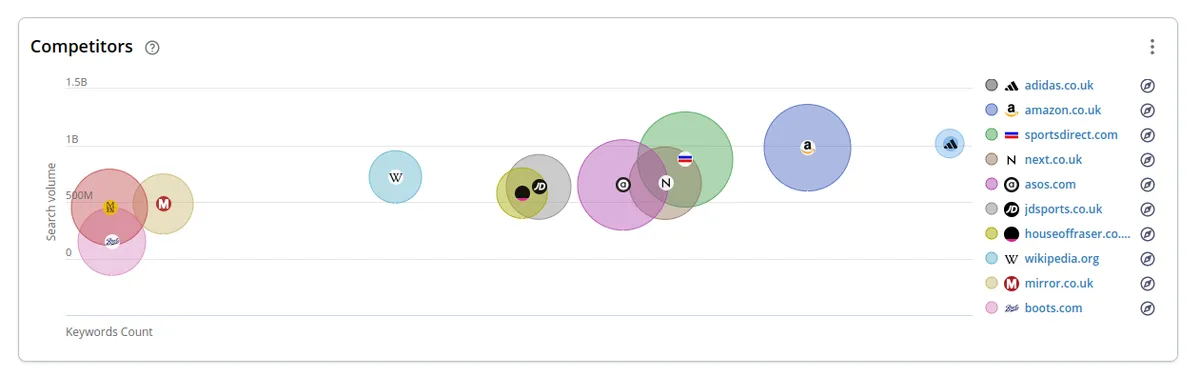
The Quick Actions area includes a bubble chart showing the main competitors for the discovered keywords associated with the domain you are researching.
The competitors shown depend on your current keyword results. When you apply filters, the competitor chart updates to reflect the competitors associated with the filtered keyword set.
You can also toggle individual competitors on or off using the competitor list on the right-hand side of the chart.
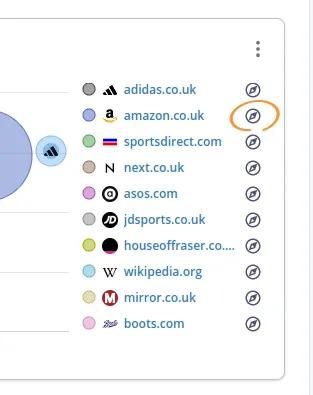
To research a competitor directly, click the compass icon on the far right of the competitor. Keyword Discovery will then search that competitor's domain.
To research a competitor directly, click the compass icon on the far right of the competitor. Keyword Discovery will then search that competitor's domain.
Because the competitors are based on the keywords currently displayed, you can use filters to make the analysis more specific. For example, filtering by a particular SERP can help you identify competitors within a narrower area of your search market.
How to Add Competitor Keywords to Your Domain
If you find relevant keywords while researching a competitor, you can import them to one of your own domains for ongoing tracking.
Start by selecting one of your own domains from the domain dropdown. Then search for the competitor domain containing the keywords you want to import.
After the search, your own domain remains selected at the top of the page, while the domain you searched for is added as a competitor filter.
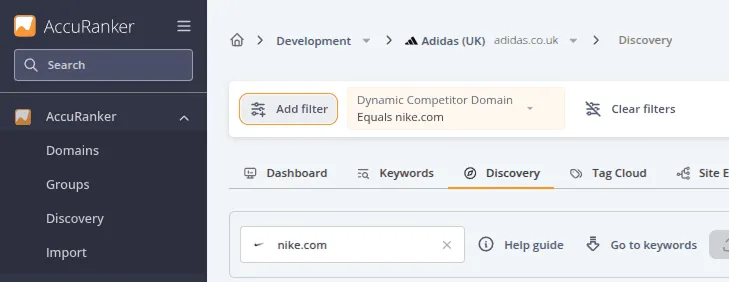
You can then use Quick Actions and the main filter bar to narrow the results before importing your keywords.
To import them:
- Select the keywords you want to track in the table.
- Click Import keywords in the Keyword Import card or at the top of the page.
- Complete the keyword import settings to add them to your selected domain.
How to Add a Domain From Keyword Discovery
You can also add a domain to your account directly from Keyword Discovery. This can be useful when your research identifies a domain and keywords that you want to start tracking.
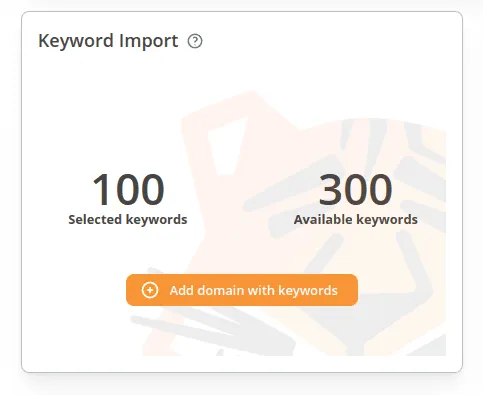
First, search for the domain you want to track. Use Quick Actions and other filters to narrow the discovered keywords, then select any keywords you want to add with the domain.
Click Add domain with keywords in the Quick Actions area.
The Add Domain window will open, where you can configure the domain's location or locations and search engine settings.
If you selected keywords before adding the domain, AccuRanker will prompt you to add them in a separate window after the domain is created.
Related help guides
Keyword Discovery
How to Add a Domain
How to Add Keywords
Still need help?
Customer support
Our live support team is ready to assist you with any issues.