

User Management
AccountLearn how to add and manage users in AccuRanker, set roles, and control access to workspaces
User management allows you to add users to your AccuRanker account with their login. You can:
- Invite people to join your AccuRanker account, with a separate email and password.
- Control the permissions for invited users, with full or limited access to Keyword Groups.
User Roles and Permissions
A user role defines the functional role of a user. Users can then be granted permissions based on their role. The matrix below maps out the different roles and permissions for each role.
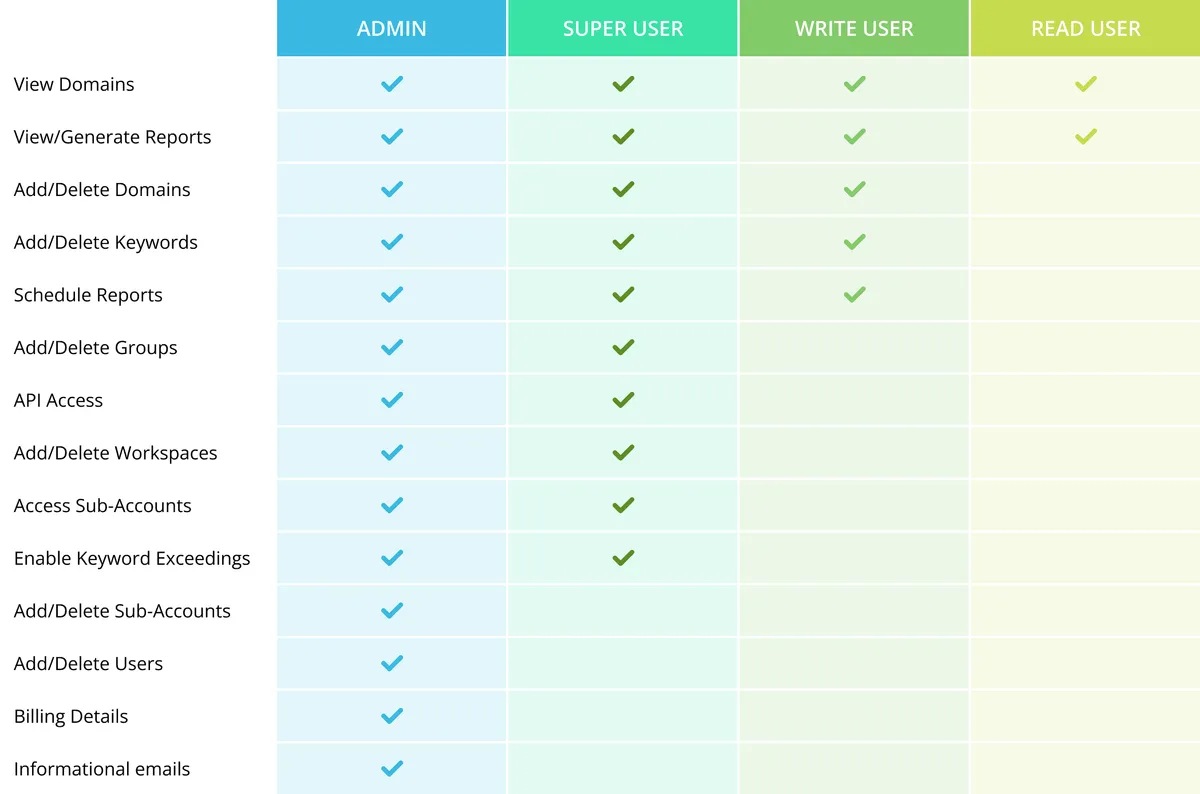
How to Manage Users
Click on Account, then Users.
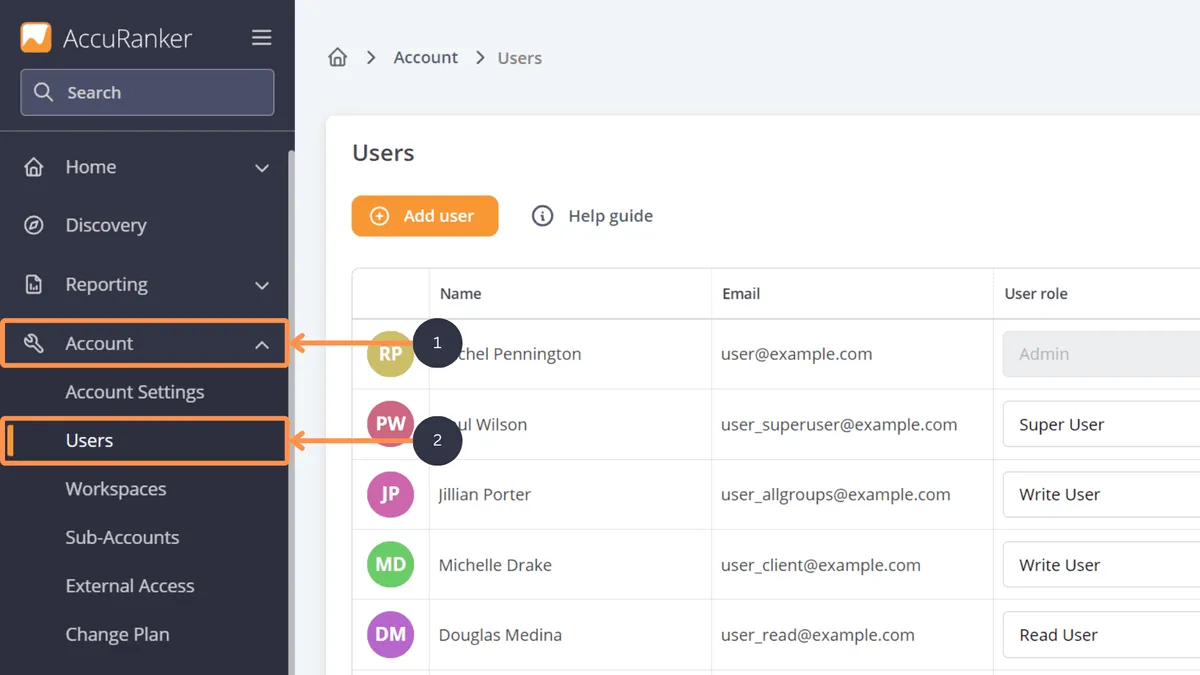
To add a new user and define the user’s role:
- Click Add user to open the user creation modal.
- Enter the user's name and email, then assign the user a role and workspace(s).
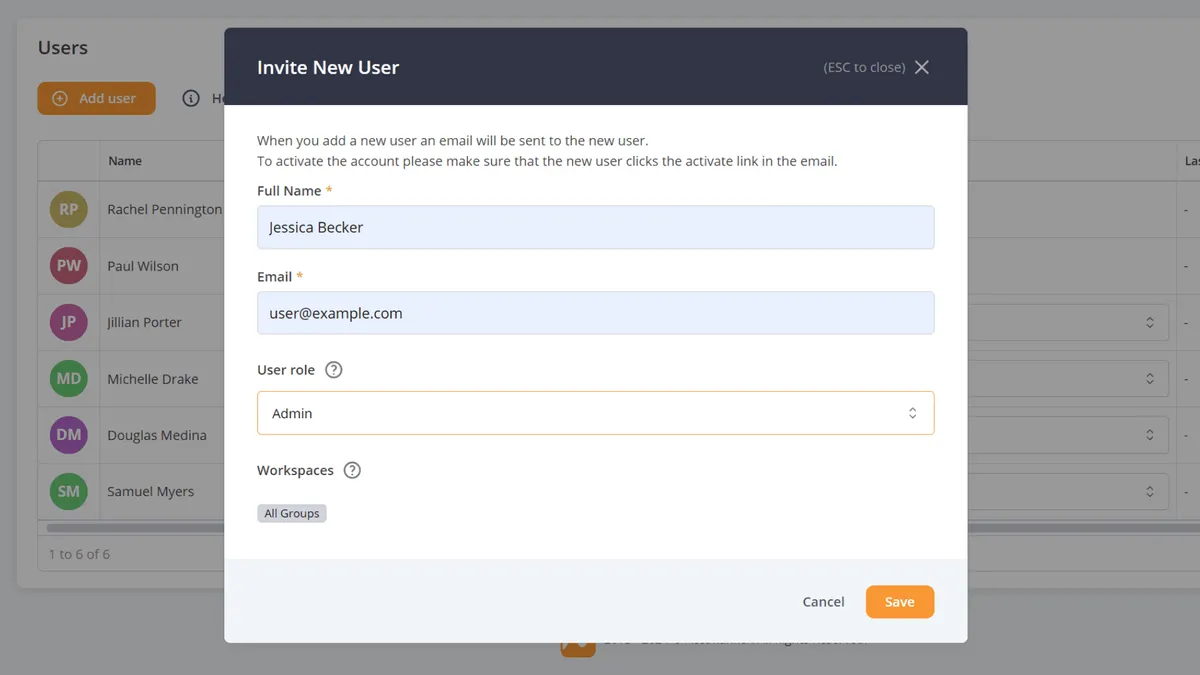
Note: User roles are integrated into AccuRanker Workspaces. Workspaces allow administrators to control which Keyword Groups, and thus which domains, each user can access. This ensures that users only see the domains relevant to their work, improving efficiency and security.
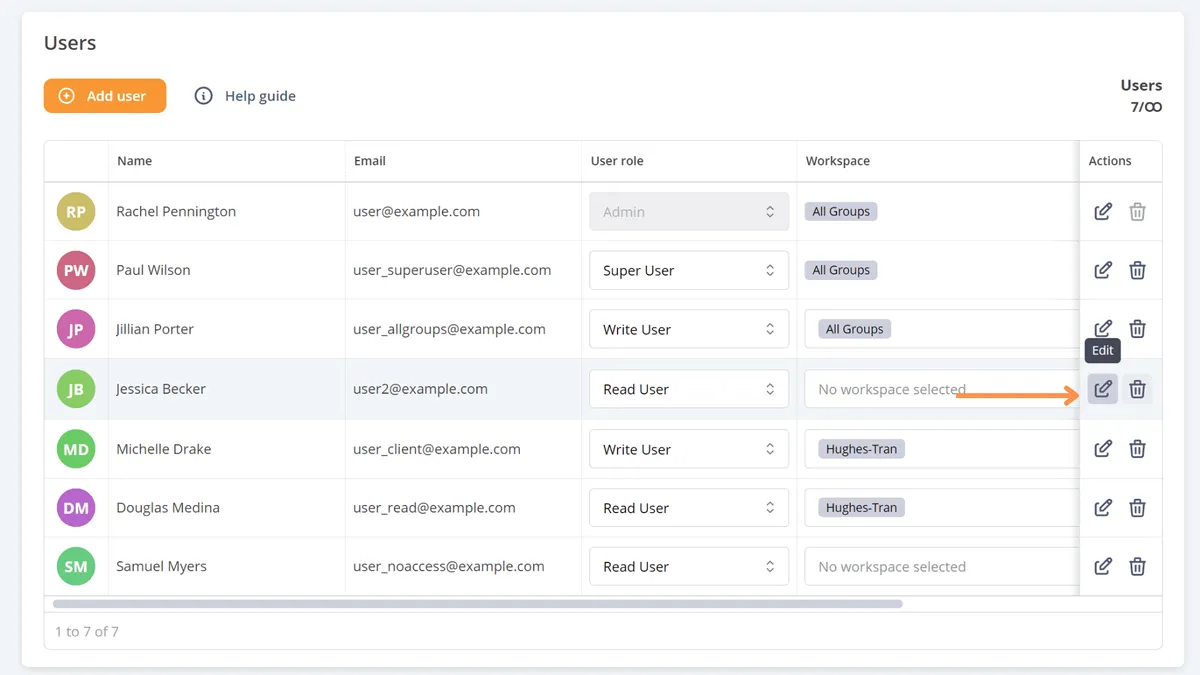
To edit or delete a user, open the User Management Table by clicking on Account, then Users. From there, click the pencil icon next to the relevant user to edit the user, or click the trash icon to delete the user.
Migration Strategy
To ensure a smooth transition to the new system, we have implemented the following migration strategy:
- Current admin users: All existing admin users will retain their admin status.
- Other users: All other users are now designated as Super Users. This means that they will have access to the All Groups workspace, ensuring that they continue to have full domain access.
Related help guides
How to Add Users
Workspace Management
Cannot Access Account Settings
Still need help?
Customer support
Our live support team is ready to assist you with any issues.