

Global Dashboard
KeywordsLear how to see the keywords of all your domains on one dashboard, and use filters, group by, and segments to build any view
The Global Dashboard shows the keywords of all your domains on one dashboard. It has the same KPIs and widgets as the dashboard of a domain.
Three tools give you any view of your data:
- Filters select the keywords. For example, the domains of one brand, or only mobile keywords.
- Group by splits the keywords into groups and shows the numbers for each group. For example, one row for each domain.
- Segments save a view, so you and your team can open it again with one click.
See also How to Group Your Data and How to Save Views with Segments.
How to See the Global Dashboard
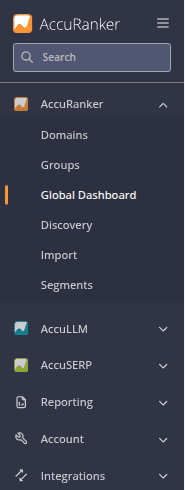
In the left menu, click AccuRanker and then Global Dashboard.
You see the keywords of all the domains that you have access to. If your account uses workspaces, you see only the domains in your workspaces.
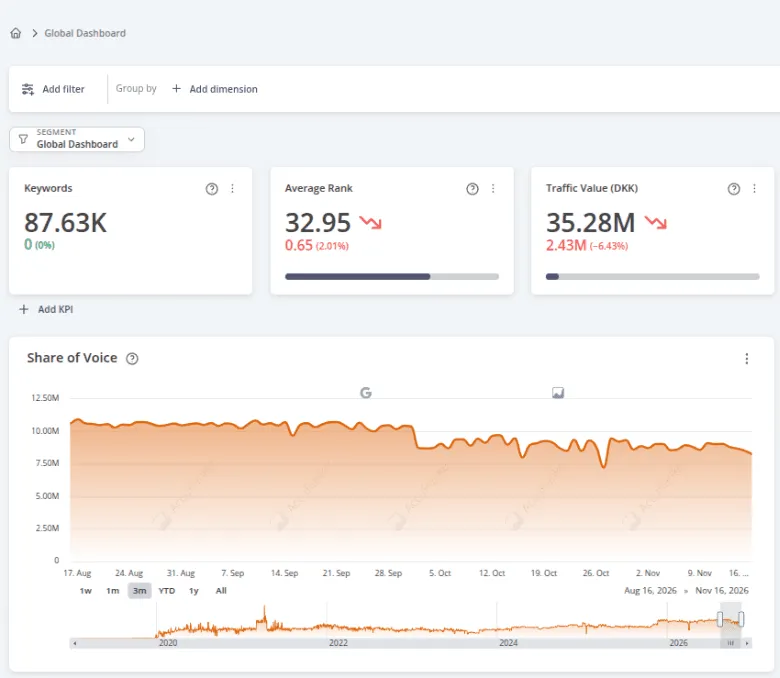 The Global Dashboard with no filters.
What you can use the global dashboard for
- Brands with country sites: See all the country domains of a brand next to each other, for example adidas.de, adidas.dk, and adidas.co.uk.
- Agencies: See all your clients at once, or one client across all its domains.
- Markets and devices: Compare countries, cities, desktop, and mobile across your whole account.
- Topics: Compare tags, for example brand and non-brand keywords, across all your domains.
- Reporting: Save each view as a segment, and open the same view every week.
When to Use Groups or Segments
Groups and segments can both bring domains together. They do different jobs.
| Groups | Segments | |
|---|---|---|
| What it holds | Whole domains | Any keywords that match your filters |
| A domain can be in | One group only | Any number of segments |
| Keyword filters (tags, device, country, search intent) | No | Yes |
| Group by | No | Yes, on the Global Dashboard |
| Who sees it | Controls access through workspaces | Personal or shared. It does not change access. |
| Change it | Move domains between groups | Edit the filters at any time |
Use groups to organize your domains and to control who has access to them. See How to Add and Delete Groups.
Use segments for views. For example, a segment can show the German domains of three different groups, or only the mobile keywords of one client. You can make as many segments as you need, without moving domains or changing access.
How to Filter the Global Dashboard
You can use all the keyword filters, for example Tags, Search Intent, and Rank. The Global Dashboard also has these filters:
| Filter | Selects |
|---|---|
| Domains | The domains that you select. |
| Groups | All domains in the groups that you select. |
| Domain URL | Domains with a URL that matches the text. |
| Domain name | Domains with a display name that matches the text. |
To add a filter:
- Click Add filter.
- Select the filter.
- Set the values.
- Click Add.
In some widgets, you can click a part of the chart to add a filter. For example, click Transactional in Search Intent to add the filter Search intent: Transactional.
To remove all filters and the group by, click Clear filters.
How to Group the Global Dashboard
Group by splits the keywords into groups. The KPIs show one row for each group, and the widgets show one line or bar for each group. You can group by Domains, Search engine, Location, Country locale, Device type, and Tags, in up to two levels.
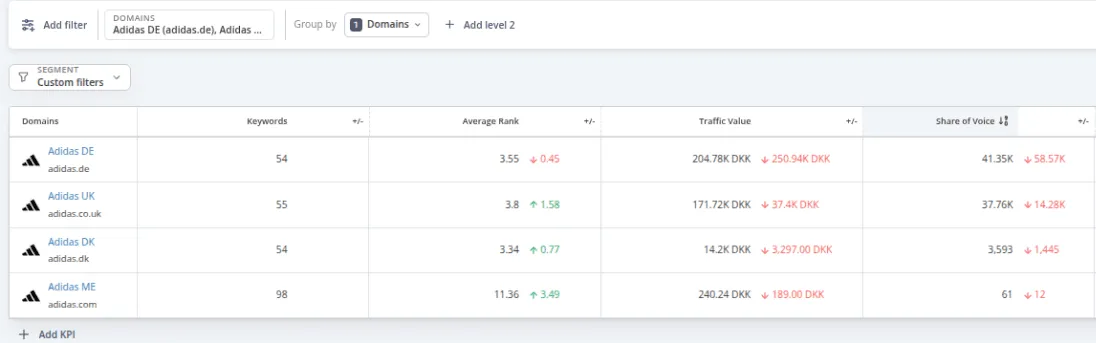 Four domains of one brand, grouped by domain.
How to Save the View as a Segment
A segment saves the filters and the group by. To save the current view, click Save filters and then Save as segment.
To open a saved view, click Segment, select the segment and click Apply segment.
See How to Save Views with Segments.
KPIs and Widgets
The default KPIs are Keywords, Average Rank, Traffic Value, Share of Voice, Above the Fold, and Average CTR. Each KPI shows the change since the date in Comparing data to.
The default widgets are:
- Share of Voice
- Average Rank
- Ranking Distribution
- Period over Period Comparison
- Share of Voice, by
- Search Intent
- Dynamic Top 10 Competitors
- Search Trend
- AccuRanker Search Volume Trend.
You can also add Share of Voice %, Traffic Value, Average CTR, Average Base Rank, Base Ranking Distribution, Pixels From Top, and Average Position on SERP from Available Widgets.
Top Winners & Losers, Organic Traffic (GA/GSC), and Competitors need one domain. They are only on the dashboard of a domain.
When the view has more than one domain, the Score over time tab of Dynamic Top 10 Competitors shows the last 90 days. To add a competitor, open the dashboard of the domain.
How to Customize the Global Dashboard
You change the Global Dashboard in the same way as the Dashboard of a domain: drag widgets, add them with + Add Widget or Available Widgets, and remove them with Remove from dashboard.
The Global Dashboard has its own layout. A change to it does not change the dashboards of your domains.
Global Dashboard vs. the Dashboard of a Domain
| Global Dashboard | Dashboard of a domain | |
|---|---|---|
| Keywords | All your domains, or the domains in your filter | One domain |
| Extra filters | Domains, Groups, Domain URL, Domain name | None |
| Group by Domains | Yes | No |
| Segment saves the group by | Yes | No. The group by is in the page link. |
| Segment scope | Personal or Shared | Personal, all domains, specific domains or specific groups |
Frequently Asked Questions about the Global Dashboard
Why do I see fewer domains than my colleague?
Your account uses workspaces. You see only the domains in your workspaces.
Why is Top Winners & Losers not on the Global Dashboard?
It needs one domain. Open the dashboard of a domain.
Does the Global Dashboard change my domain dashboards?
No. It has its own layout and its own segments.
If you have other questions, contact our support team from your account.
Related help guides
How to Group Your Data
How to Save Views with Segments
Dashboard
Still need help?
Customer support
Our live support team is ready to assist you with any issues.