

How to Save Views with Segments
KeywordsLearn how to save your filters and group by as a segment, and open the same view again with one click
A segment is a saved view. It saves your filters and, on the Global Dashboard, your group by. Open the segment, and AccuRanker shows the same view again.
This gives you a simple method for any view of your data:
- Filter to select the keywords.
- Group by to split them into the groups that you want to compare. See How to Group Your Data.
- Save the view as a segment, for you or for your team.
A segment saves the rules, not a list of keywords. New keywords that match the filters are in the segment automatically.
How to Save a View
- Add the filters and, on the Global Dashboard, the group by.
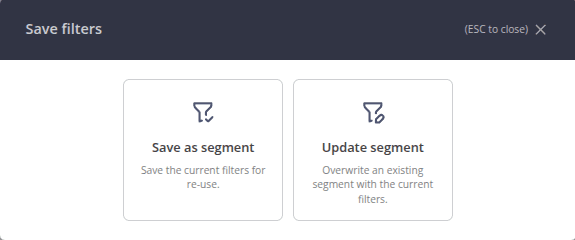
- Click Save filters.
- Click Save as segment.
- Type a Name that tells your team what the view shows. A Description is optional.
- Select the Scope: Personal (only you) or Shared (all users in your account).
- Check Group by and Filters. You can change them here.
- Click Save segment.
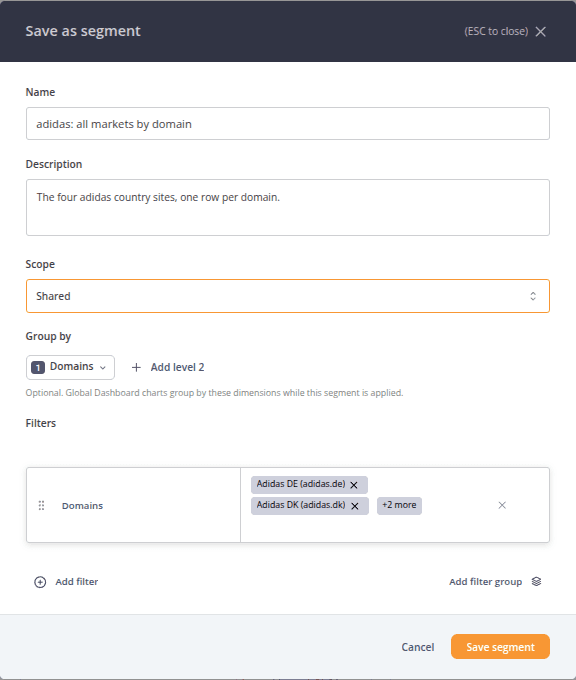 A shared segment with four domains, grouped by domain.
Save filters shows when you have a filter. On the Global Dashboard, a group by is enough.
To replace a saved segment with the current view, click Save filters, then Update segment, and select the segment.
How to Open a Segment
- Click Segment below the filter bar.
- Click a segment to see its filters and group by.
- Click Apply segment.
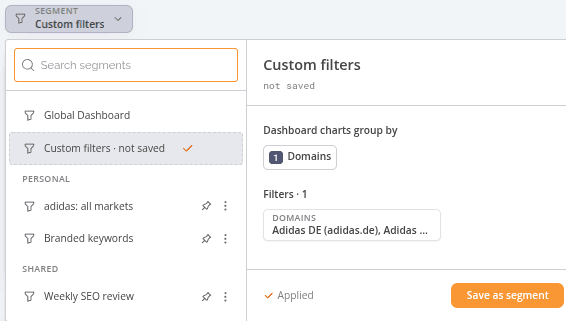
- Type in Search segments to find a segment.
- Custom filters · not saved is your current view when it is not a saved segment. Click it and then Save as segment to save it.
- To see all keywords again, click the first row (for example Global Dashboard) and then Reset to all keywords.
How to Pin, Change, Copy or Delete a Segment
Click the pin icon next to a segment (Pin to filter bar). The segment then shows as a button in the filter bar. Pins are only for you.
Click the three dots next to a segment for:
- Edit: Dhange the name, description, scope, filters, or group by.
- Duplicate: Make a copy to start a similar view.
- Update from current filters: Replace the filters with the ones you use now.
- Delete.
What Are Personal and Shared Segments?
| Scope | Who can use it | Who can change it |
|---|---|---|
| Personal | Only you | Only you |
| Shared | All users in your account | The user who made it, and organization admins |
On the Global Dashboard, a segment is personal or shared. On the pages of a domain, a segment can also be for all domains, specific domains, or specific groups.
Each user sees the data of the domains they have access to, also in a shared segment.
Examples
These views use the Global Dashboard. Save each one as a segment.
| View | Filters | Group by |
|---|---|---|
| Country sites of one brand | Domain name contains "adidas" | Domains |
| Countries and devices in the whole account | None | Country locale, then Device type |
| Brand and non-brand keywords for each domain | Domains | Domains, then Tags |
| Keywords with buying intent | Search intent is Transactional | Domains |
| Local rankings in one country | Domains and Country locale | Location |
| One client of an agency | Groups is the client's group | Domains |
| Google compared with Bing | None | Search engine |
| Top keywords in each market | Search Volume greater than 1,000 | Country locale |
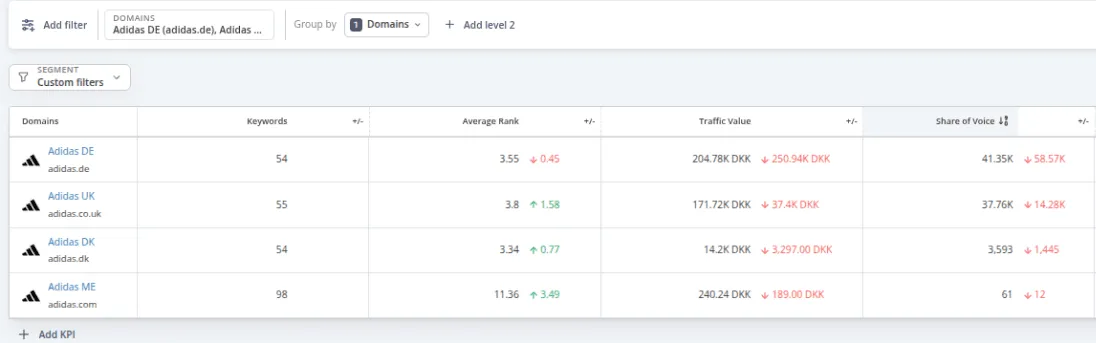 Country sites of one brand: one row for each domain.
For brand and non-brand, give your branded keywords a tag first. See Static Tags and How to Tag Keywords and Dynamic Tagging.
The Segments Page
In the left menu, click AccuRanker and then Segments.
The page lists all segments that you can see, with their Type, Scope, and creator. Global Dashboard segments have the type Global dashboard.
Use Create segment, Edit, Duplicate, and Delete to manage them.
To use a segment in the AccuRanker API, add ?segment_id=<id> to the request. The ID is in the ID column.
Frequently Asked Questions about Segments
What is the difference between a segment and a dynamic tag?
A segment saves a view and does not change your keywords. A dynamic tag adds a tag to the keywords that match a rule. You can then filter and group by that tag.
Why does my segment not save the group by?
Segments save the group by only on the Global Dashboard. On the dashboard of a domain or a group, copy the page link instead.
Can I change a shared segment that a colleague made?
Only if you are an organization admin. Otherwise, use Duplicate to make your own copy.
If you have other questions, contact our support team from your account.
Related help guides
Global Dashboard
How to Group Your Data
Dynamic Tagging
Still need help?
Customer support
Our live support team is ready to assist you with any issues.