

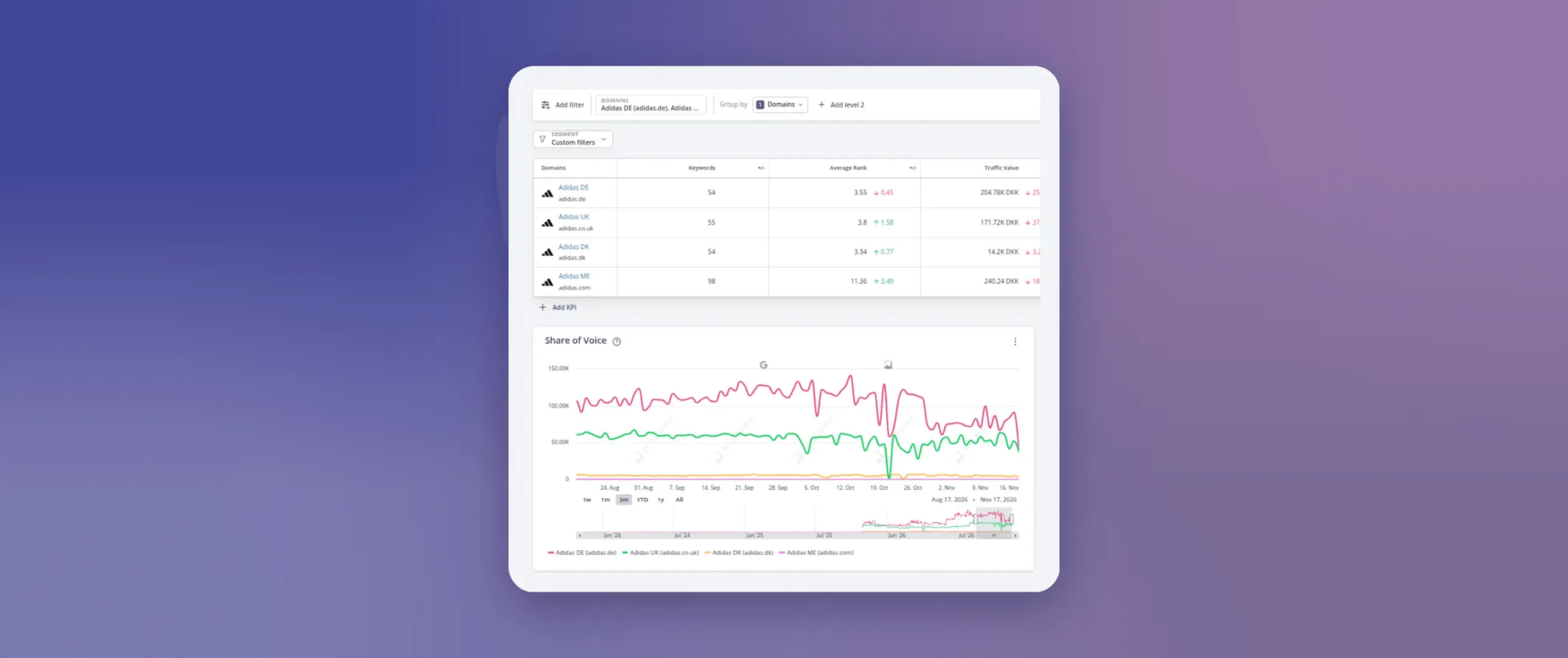
Introducing Global Dashboard, Group By, and Segments
Peter Emil Tybirk
November 25, 2026
See all your domains on one dashboard, compare them side by side with group by, and save any view as a segment.
Until now, an AccuRanker dashboard showed one domain or one group. If you wanted to compare your country sites, your clients or your markets, you opened them one by one, or you exported the data and built the comparison yourself.
We have released three features that work together and remove that work:
- The Global Dashboard shows all your domains on one dashboard.
- Group by splits your keywords into groups and puts them next to each other.
- Segments save the view, so you can open it again with one click.
Filter to select the keywords. Group to compare them. Save the view. With these three steps, you can build almost any view of your data.
The Global Dashboard
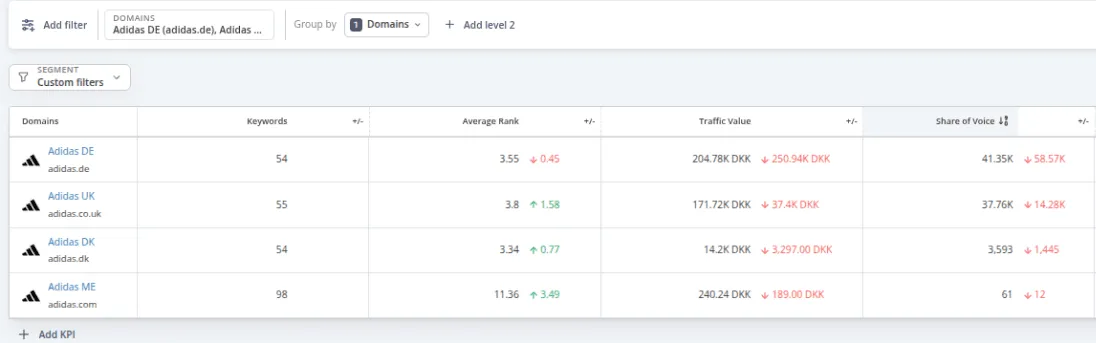
The Global Dashboard is in the left menu, under AccuRanker. It has the KPIs and widgets that you know from the dashboard of a domain: Share of Voice, Average Rank, Ranking Distribution, Search Intent, Dynamic Top 10 Competitors, and more. The difference is the scope. It shows the keywords of every domain that you have access to.
You can filter it with all the keyword filters, and with four new filters for domains: Domains, Groups, Domain URL, and Domain name. For example, filter on the domain name "adidas", and you see every adidas site in your account, in all its groups.
Group by: Compare Side by Side
Group by is the part that turns one big number into a comparison. Select a dimension in the filter bar, and every KPI and widget splits into groups:
- Domains: one row for each domain.
- Search engine: Google, Bing, YouTube, and others.
- Location and Country locale: cities, countries, and languages.
- Device type: desktop and mobile.
- Tags: your own topics, for example brand and non-brand.
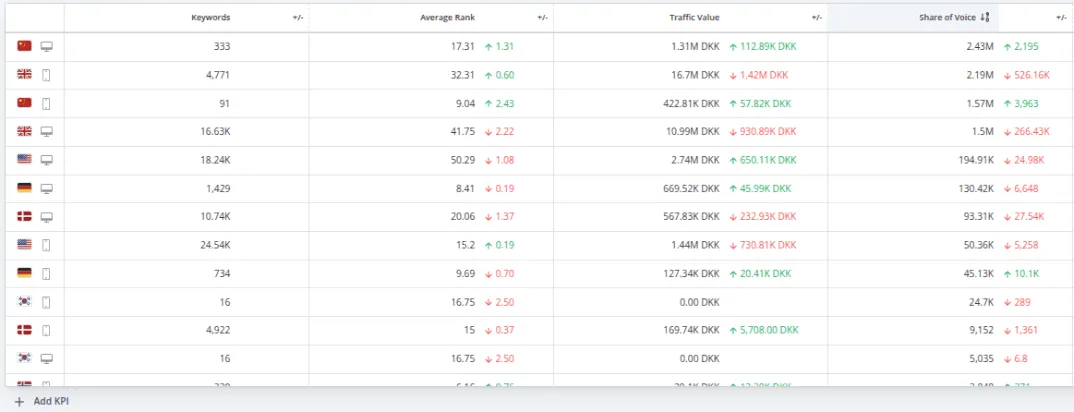
The KPIs become a table with one row for each group and the change since your compare date. Sort it by any column to find your strongest and weakest groups. The charts show one line or one bar for each group.
You can also use two levels. Group by country and then by device, and you see Germany on desktop, Germany on mobile, Denmark on desktop, and so on, in one table.
Segments: Save the View
A good view is worth keeping. Click Save filters and save the view as a segment. On the Global Dashboard, a segment saves both the filters and the group by.
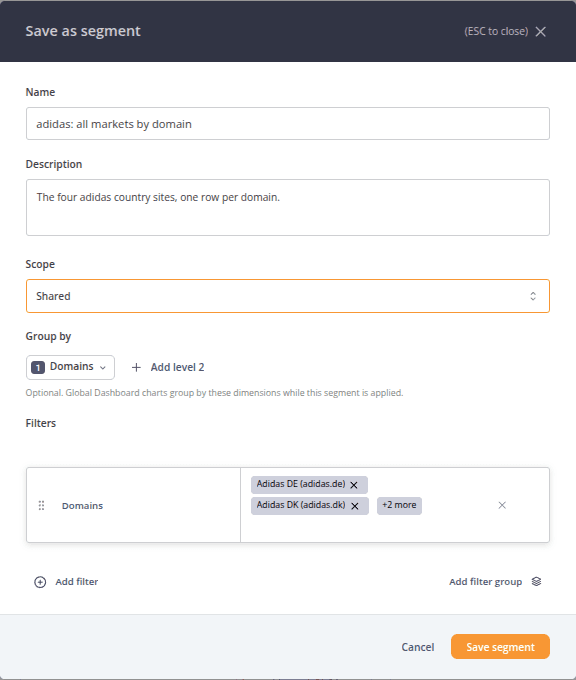
Make a segment Personal for your own work, or Shared for your whole team. Pin the segments that you use most to the filter bar. The next time, your weekly market review is only one click away.
A segment saves the rules, not a list of keywords. When you add new keywords that match the filters, they are in the segment automatically.
Why not just use groups?
Groups are how you organize your domains, and they control who has access to what through workspaces. But a domain can be in only one group, and a group always holds whole domains.
Segments have none of these limits. One segment can show the German sites of three different groups. Another can show only the mobile, non-brand keywords of one client. You can make as many as you need, and you never have to move a domain or change anyone's access.
Five Views to Try
- One brand, all markets: Filter on the domain name of your brand, and group by Domains.
- Your markets on each device: No filter. Group by Country locale, then Device type.
- Brand and non-brand: Filter on your domains, and group by Domains, then Tags.
- Keywords with buying intent: Filter on Search intent: Transactional, and group by Domains.
- One client: Filter on the client's group, and group by Device type or Location.
Save each one as a segment, and you have a set of views that stay up to date with your rankings.
Get Started
Open Global Dashboard in the left menu, add a filter and select a dimension next to Group by. Our help guides explain each part in detail:
If you have questions or ideas for views that you want to build, contact our support team from your account. We would like to hear from you.
Related blog posts
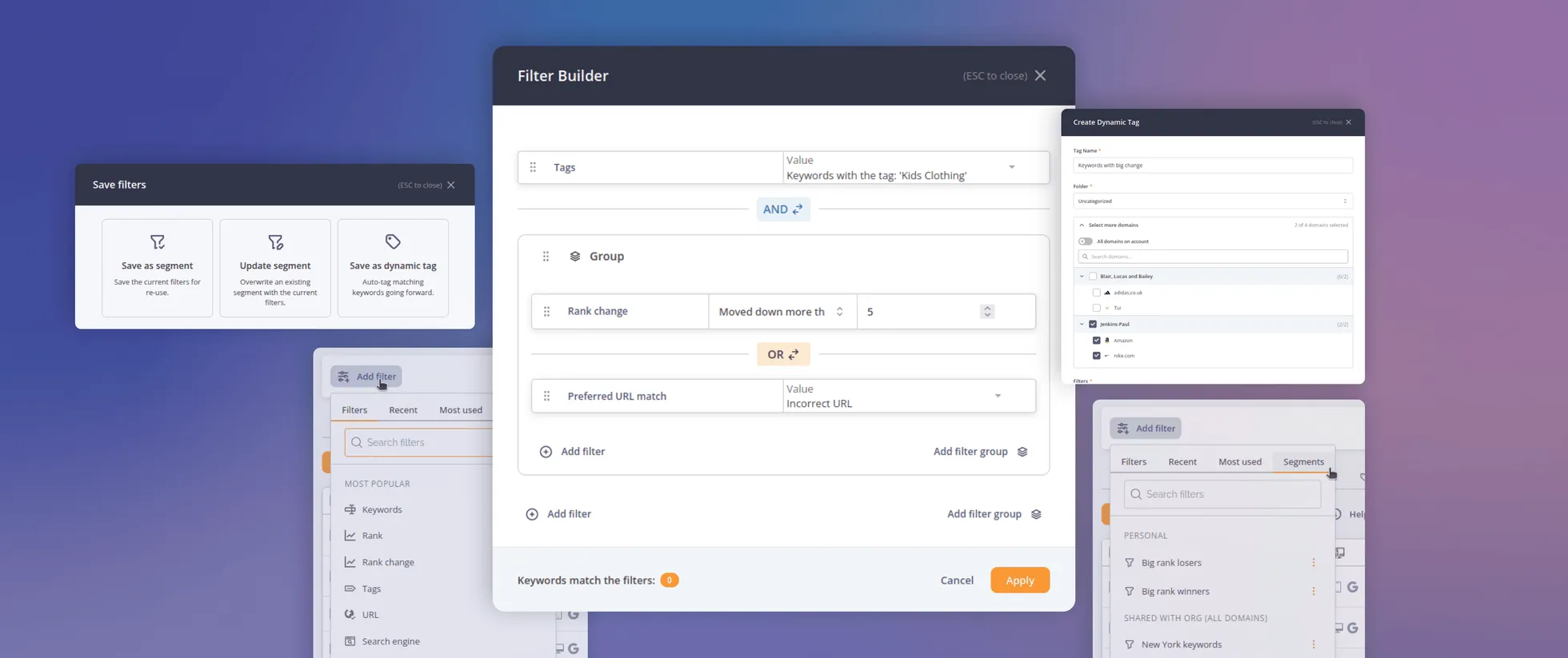
Introducing AccuRanker’s Unified Filtering Experience
AccuRanker's unified filtering experience brings the filter bar, dynamic tags, saved segments, and the API into a shared filtering engine.
9 June 2026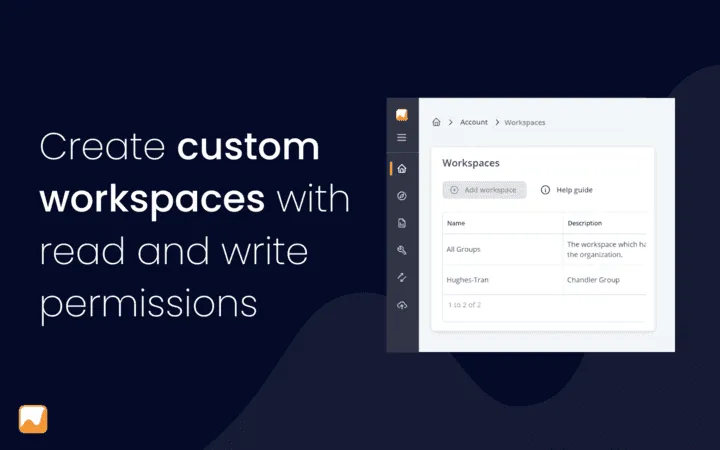
AccuRanker Introduces Workspaces to Empower Access Control
Discover AccuRanker's new Workspaces and Advanced User Management features for enhanced user access control.
11 July 2024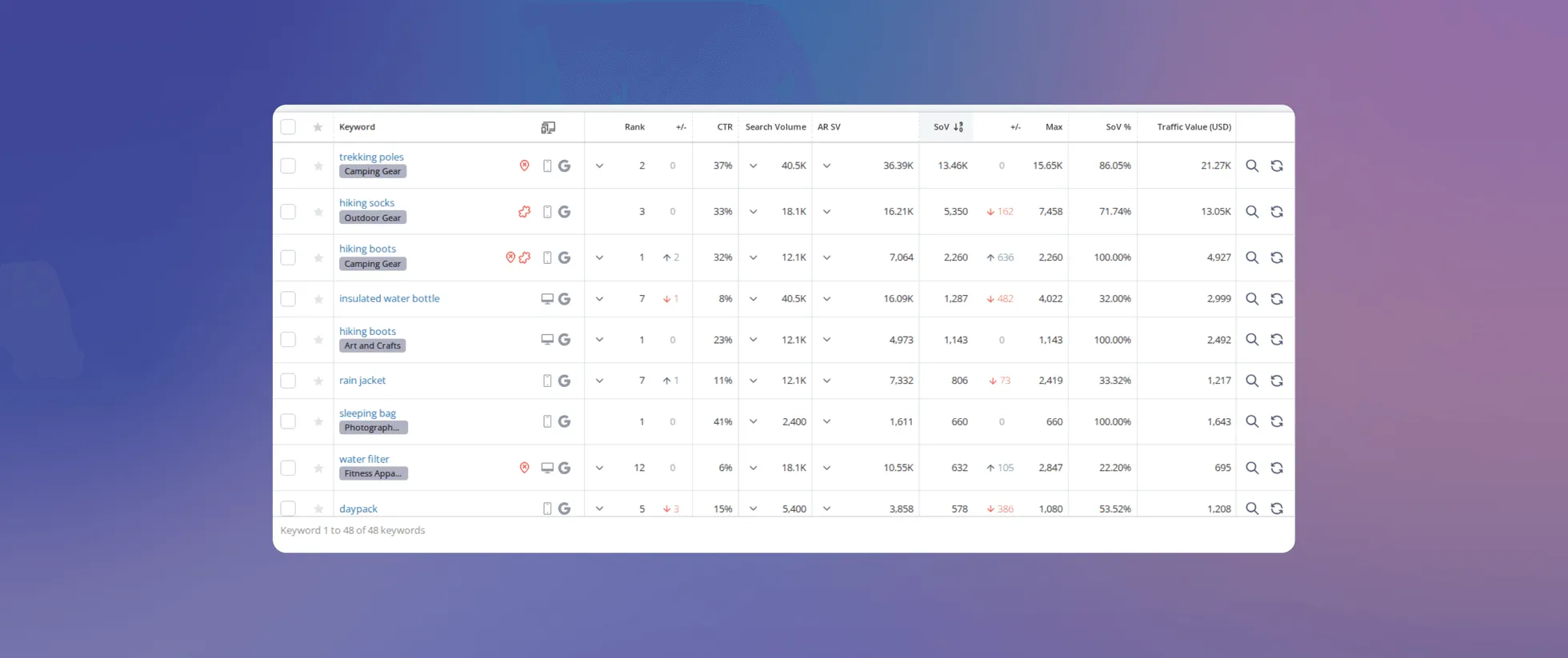
New Share of Voice: What Changes on October 21, 2026
Our Share of Voice is changing. See what is new, why we updated Dynamic CTR, and what to expect from your data when the changes go live.
7 October 2026